For the uninitiated, the bootloader is a piece of software on your phone that loads up the core OS � think of it like BIOS for Windows. But by default, the bootloader will only load official firmware files from the device OEM, which means you cant flash custom recovery images like TWRP to facilitate other root-level mods. By unlocking the bootloader, however, you can flash any firmware files you want.
A working root method for the Pixel 2 and Pixel 2 XL has just become stable enough to try, but as always, the first step is to unlock the bootloader. So if youre interested, Ill cover the bootloader unlocking process in detail below. Even if youre a beginner, this should be easy � as long as you follow the instructions carefully.
- Dont Miss: List of Phones with Unlockable Bootloaders
What Youll Need
- Pixel 2 or Pixel 2 XL from the Google Store or Project Fi
- Mac or Windows computer
- USB data cable
Disclaimers
- Unlocking the bootloader will wipe your device.
- Your phone will now fail SafetyNet, but Magisk can fix this (in the future).
- This method will not work on Pixel 2 models purchased from Verizon.
- Unlocking the bootloader does not void your Pixel 2 or Pixel 2 XL warranty.
Step 1Enable Developer Options
First up, youll need to enable the hidden Developer Options menu on your phone so you can enable a setting that allows bootloader unlocking. To start, head to the About phone menu in Settings, then scroll down and tap the "Build number" entry seven times in rapid succession. Youll see a toast message stating "Congratulations, you are now a developer!"
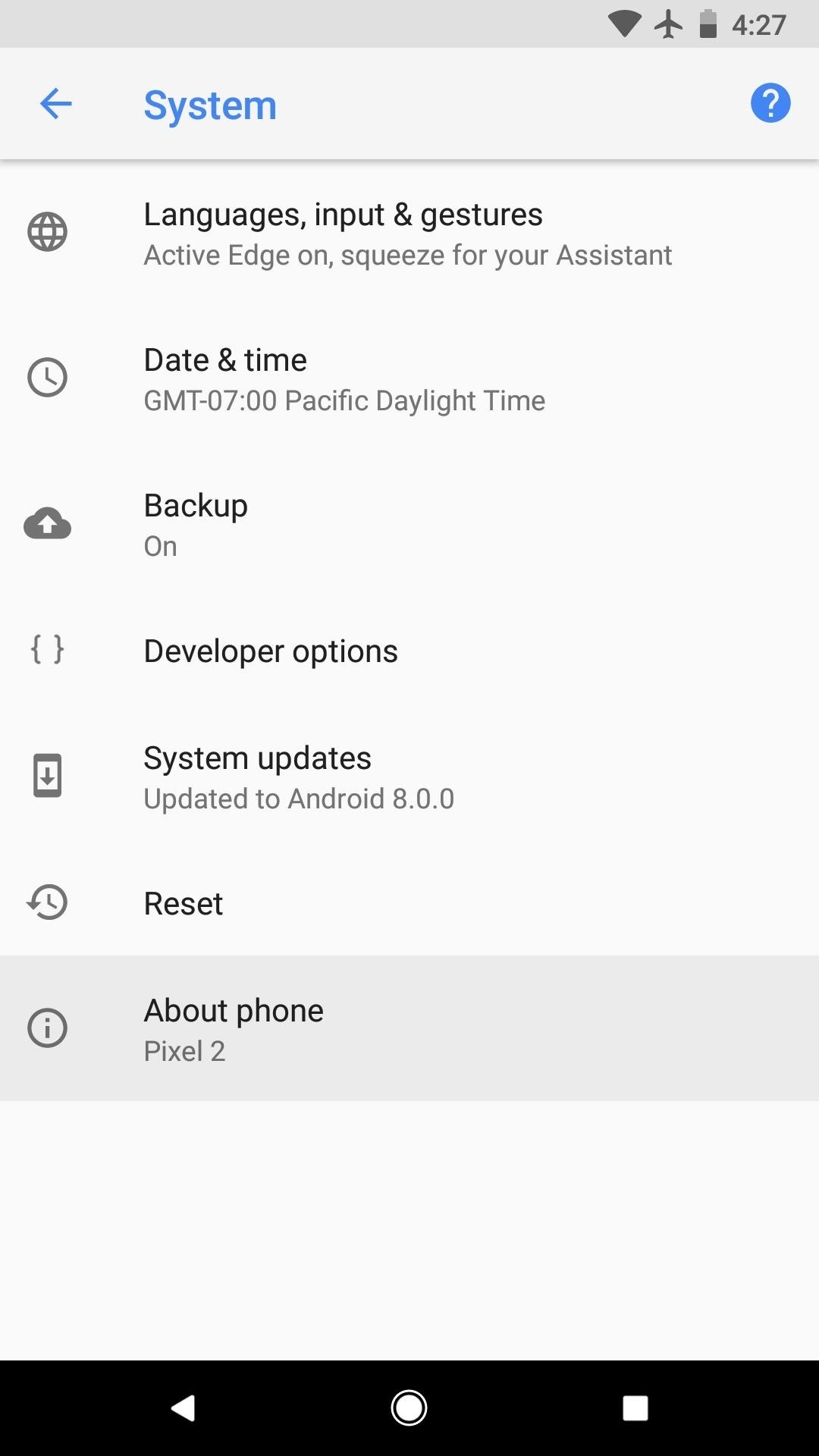
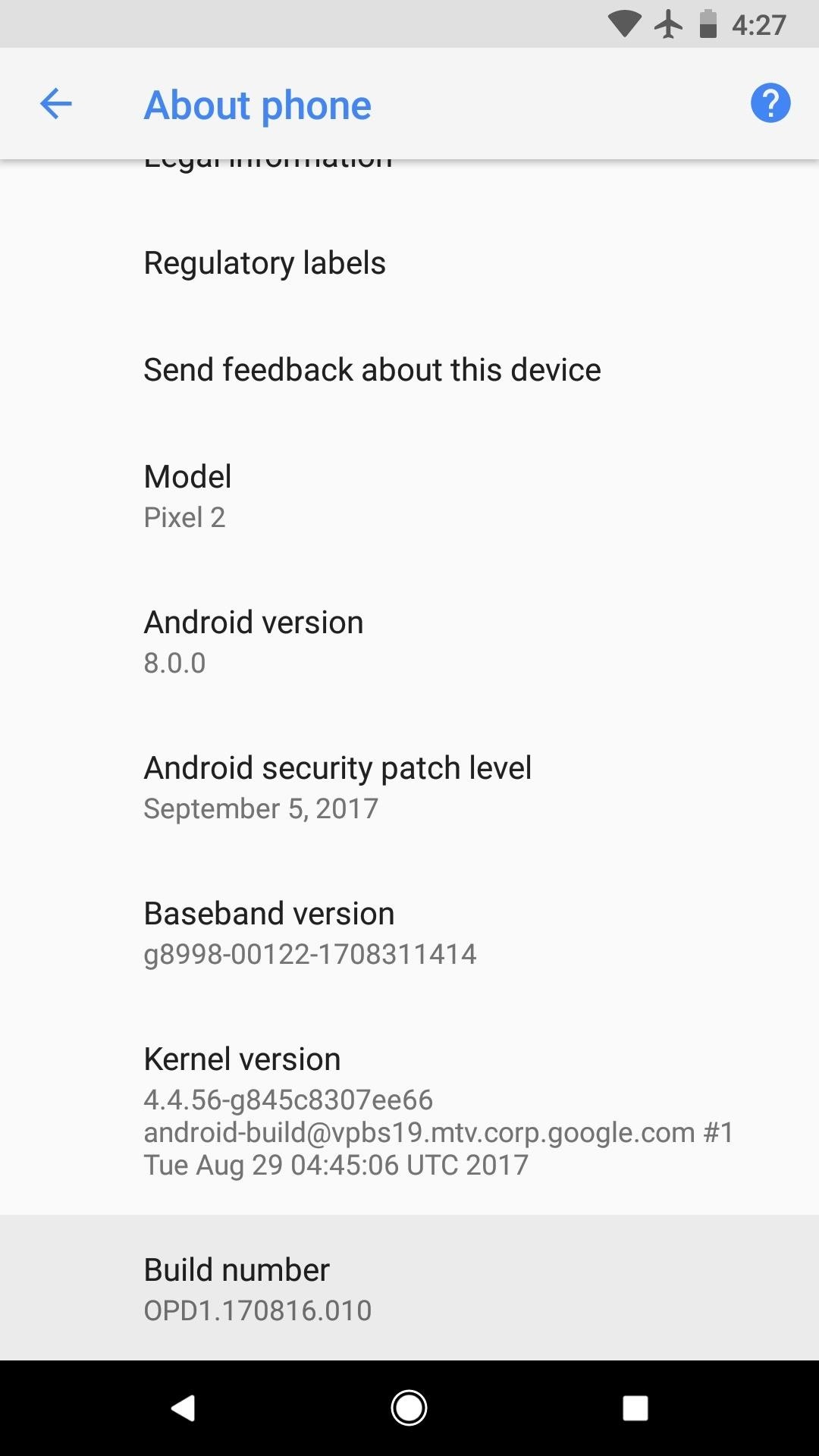
Step 2Enable OEM Unlocking
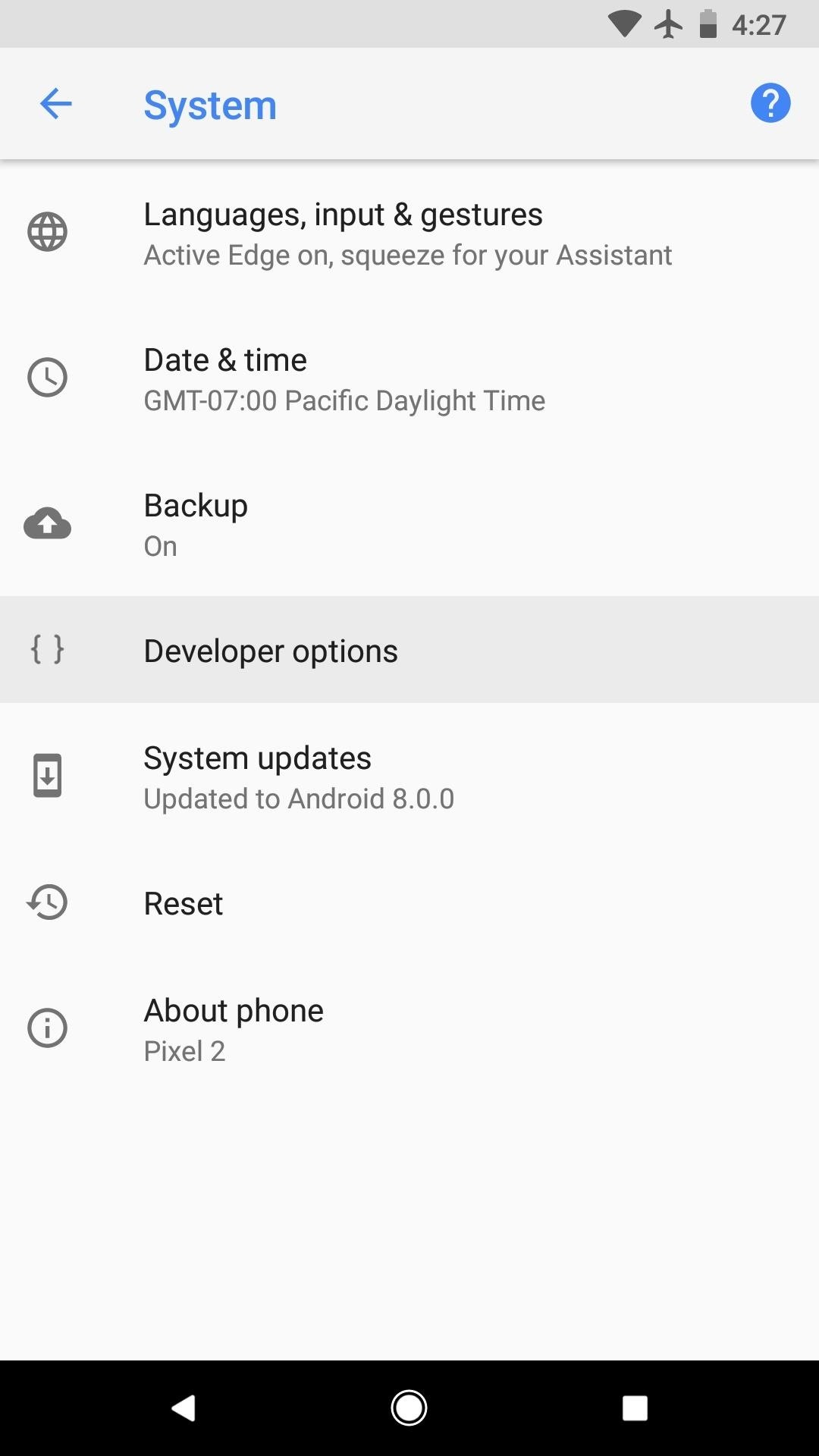
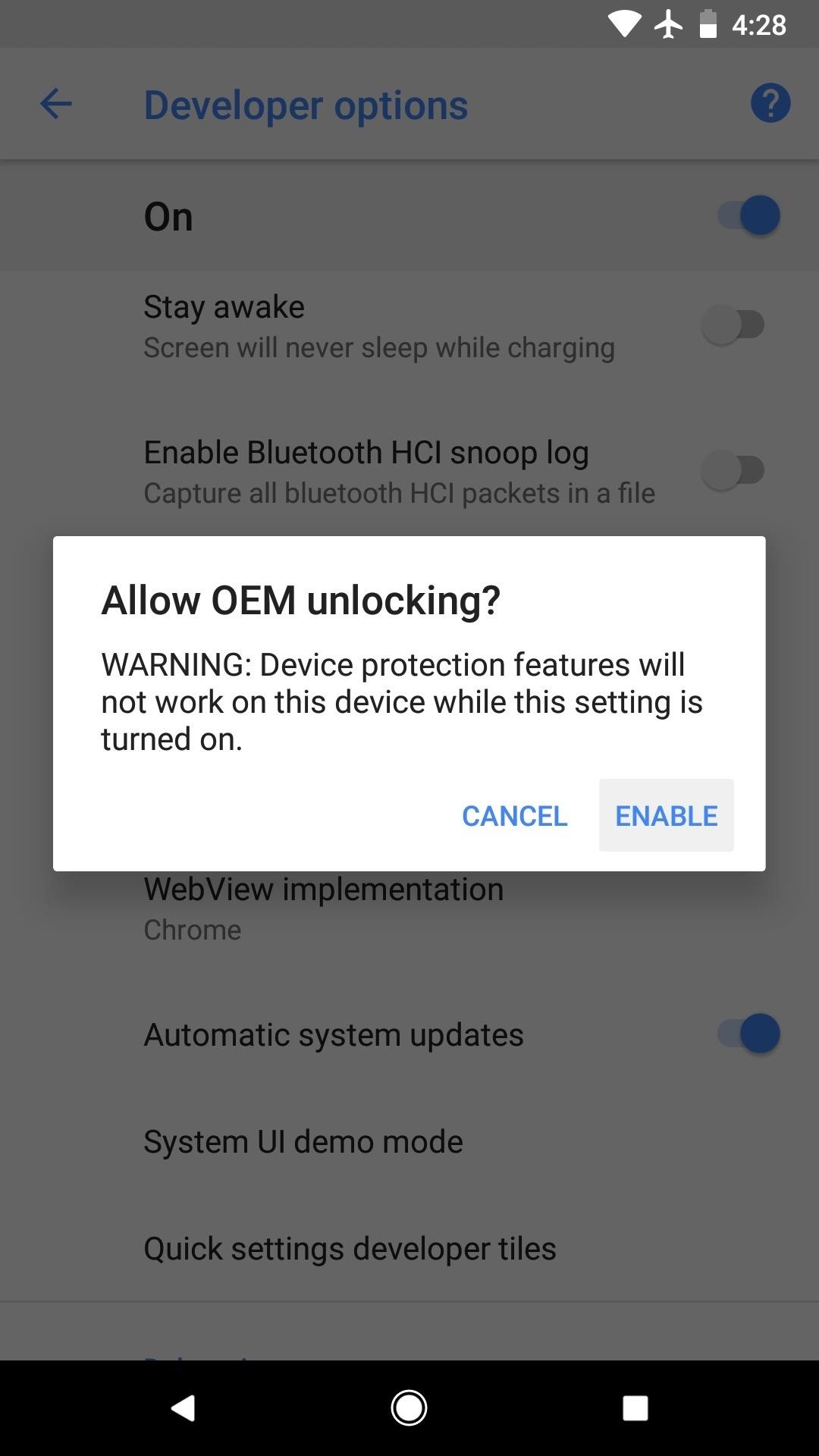
Next, back out one level to the About phone menu again, and now youll see the "Developer options" menu, so select it. From there, enable the switch next to the "OEM unlocking" setting.
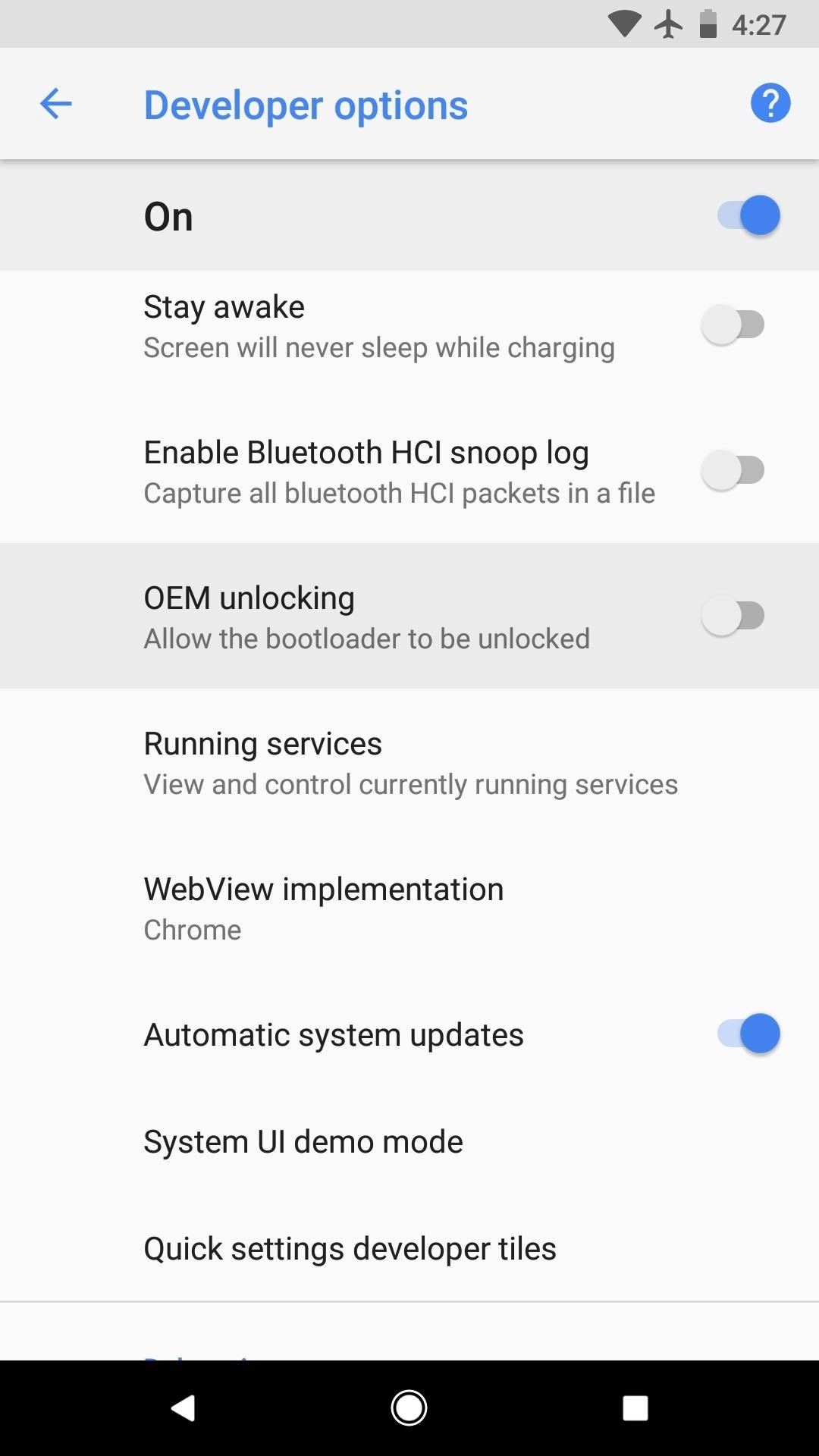
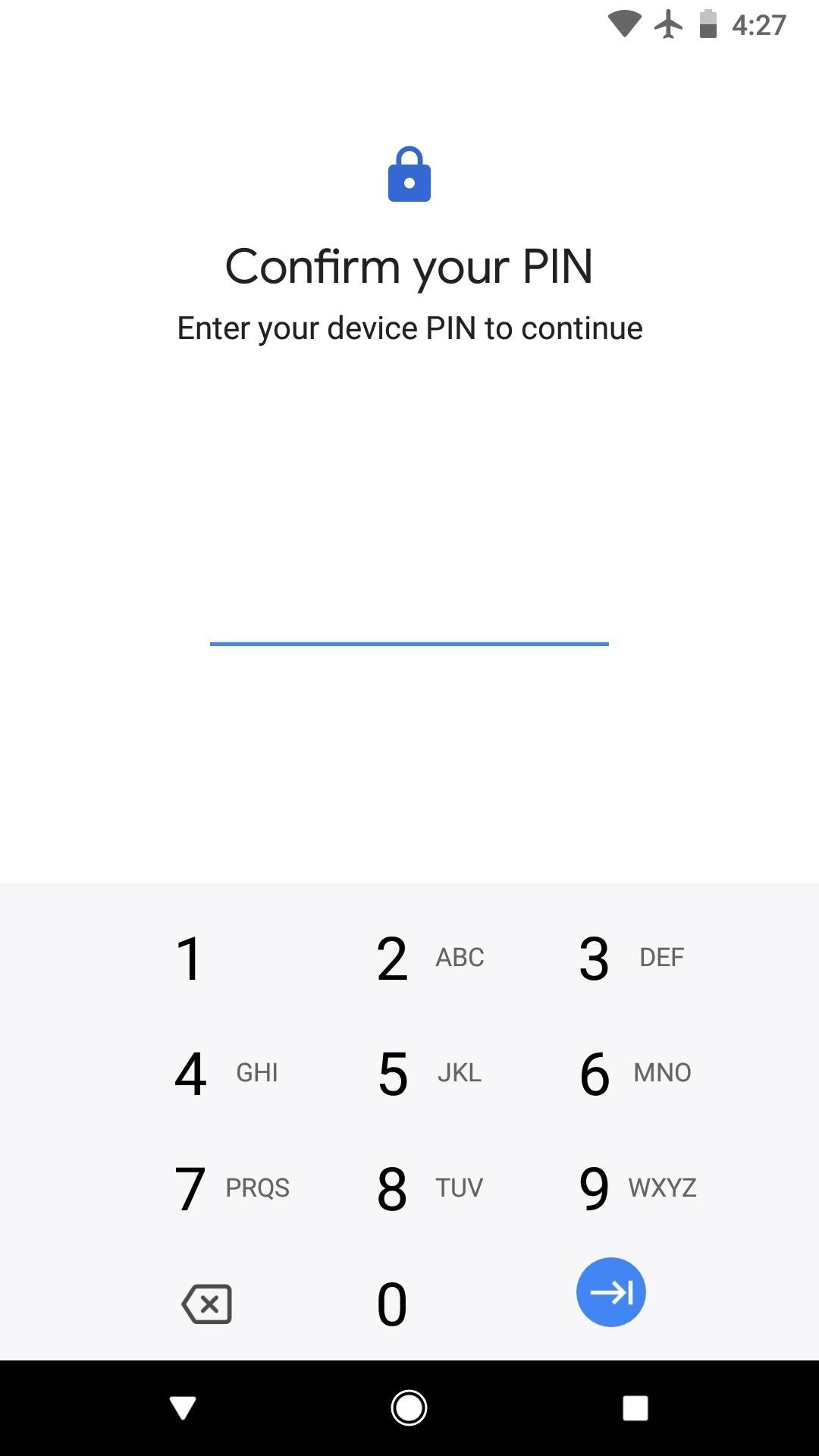
From here, youll be asked to confirm your lock screen PIN or password. Once youve done that, tap "Enable" on the confirmation popup, and your phone will now be able to accept the Fastboot command that unlocks the bootloader.
Step 3Boot into Bootloader Mode & Connect to Your Computer
Next, its time to put your phone into bootloader mode. You could do this with an ADB command, but theres an even easier way: Restart your phone, and when the screen goes black, press and hold the volume down button. Within a few seconds, youll be greeted by the bootloader menu, which looks like this:
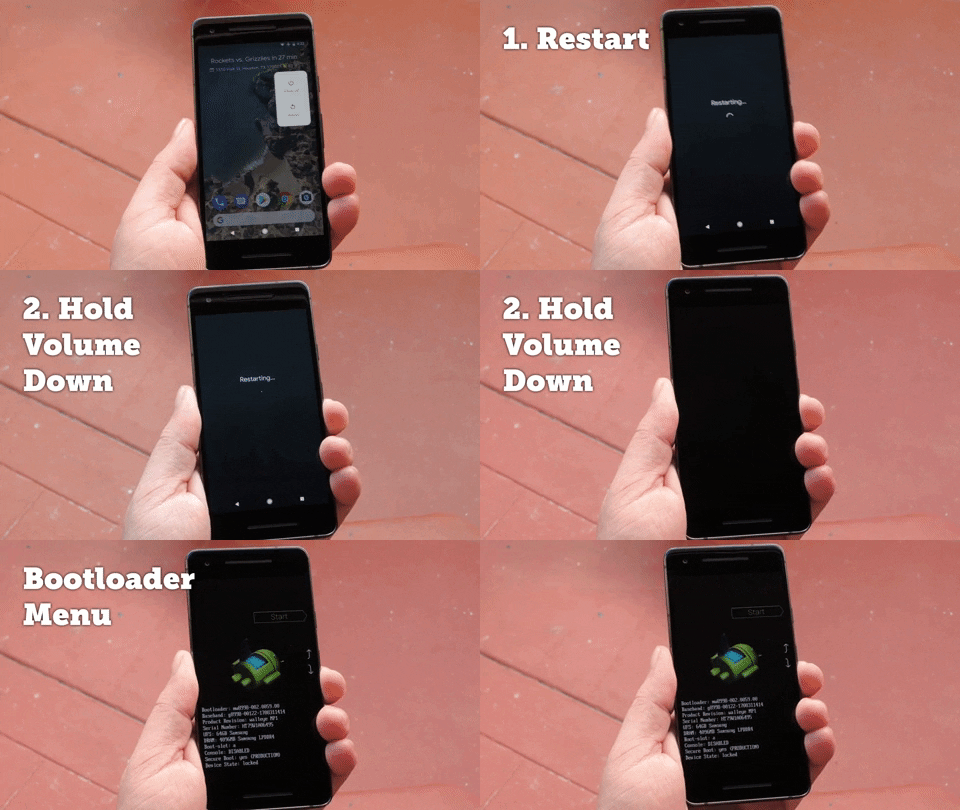
Once youve made it to bootloader mode, dont bother pressing any buttons on your phone. Just leave it on the screen depicted at the end of the above GIF, then connect your phone to your computer with a USB data cable.